AI Photo Animation
How to Make a Talking Photo: An Easy Step-by-Step Guide

What You Need to Animate a Photo's Voice
- A Suitable Photograph. The best results come from a clear, high-quality, front-facing portrait where the subject's face is well-lit and not obscured by hands, shadows, or accessories like sunglasses. A neutral expression works well, but a gentle smile is also fine. Most importantly, ensure you have the legal right and consent to use the image.
- An Audio Recording. This can be a voiceover, a line from a movie, a personal message, or any other spoken-word audio. For the clearest lip-syncing, use an audio file with a clean voice track and minimal background noise. You can record a new clip using your phone's voice memo app or use an existing audio file in a common format like MP3 or WAV.
How to Make a Photo Talk with AI: A 5-Step Tutorial
Step 1
Step 1: Upload Your Photo
Navigate to the AI Talking Photo tool on karaokemaker.ai. The first step is to upload the image you want to animate. Click the upload button and select a high-resolution portrait from your device. Remember the golden rule: only use photos you own or have explicit permission to animate. This ensures your creative work is respectful and legally sound.Step 2
Step 2: Add Your Audio File
Next, upload your audio file. This is the speech or voiceover that your photo will 'speak.' The AI will analyze the phonemes and timing in this track to generate the corresponding mouth movements. For the best results, use a clear audio recording where the voice is prominent and easy to distinguish from any background noise or music.Step 3
Step 3: Customize Your Scene (Optional)
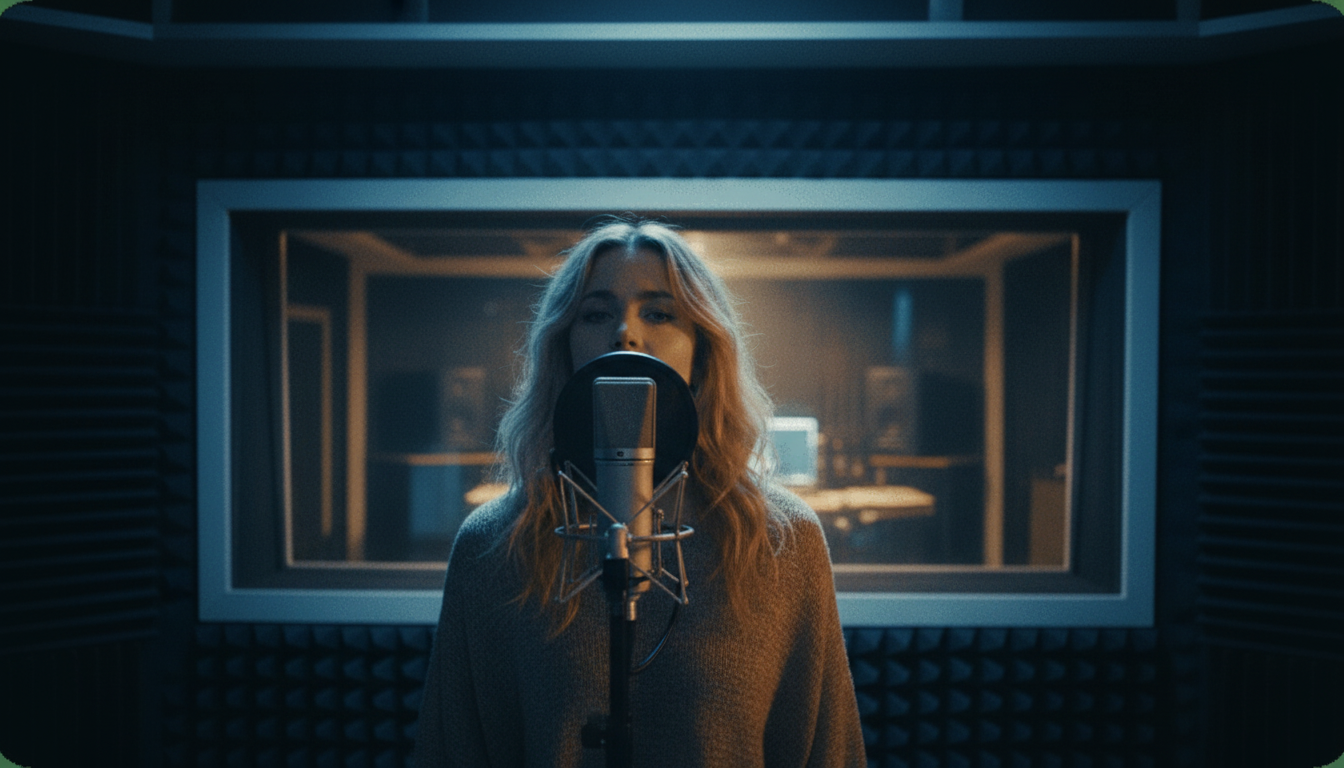
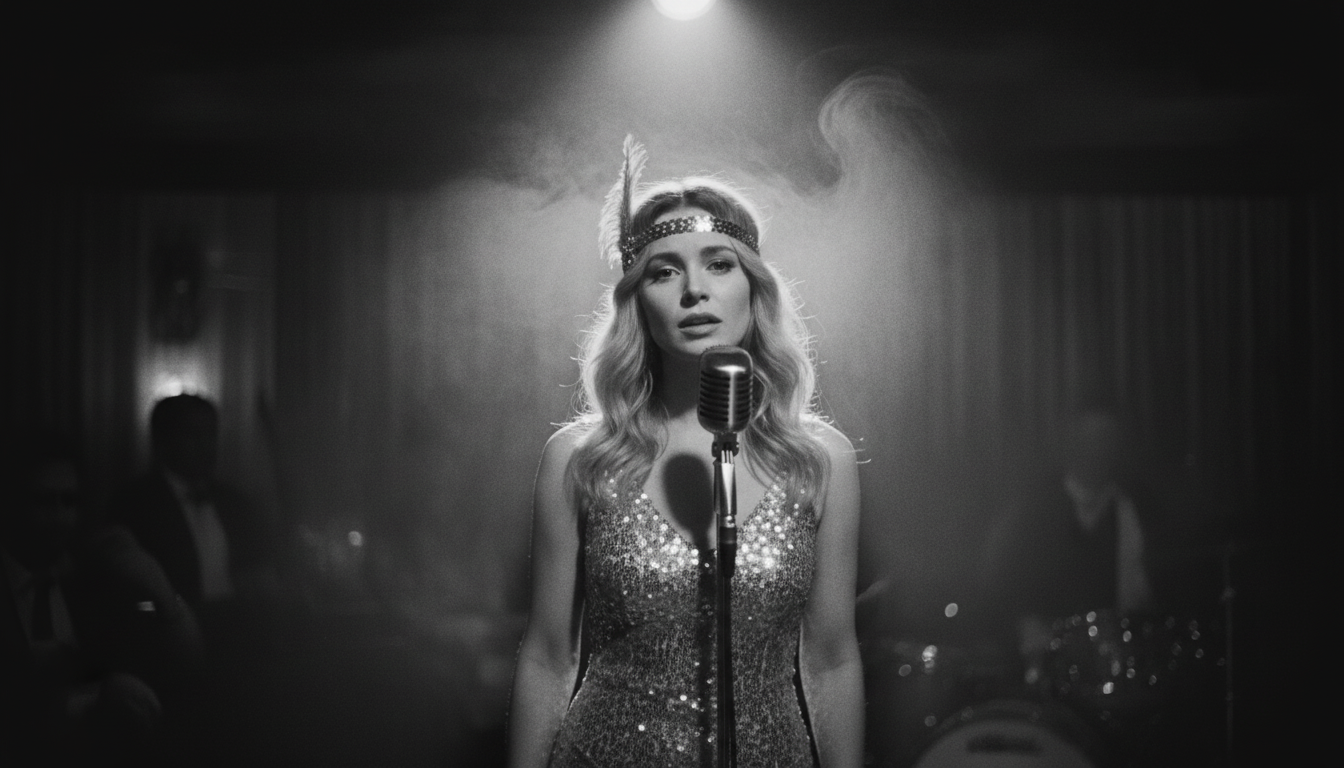
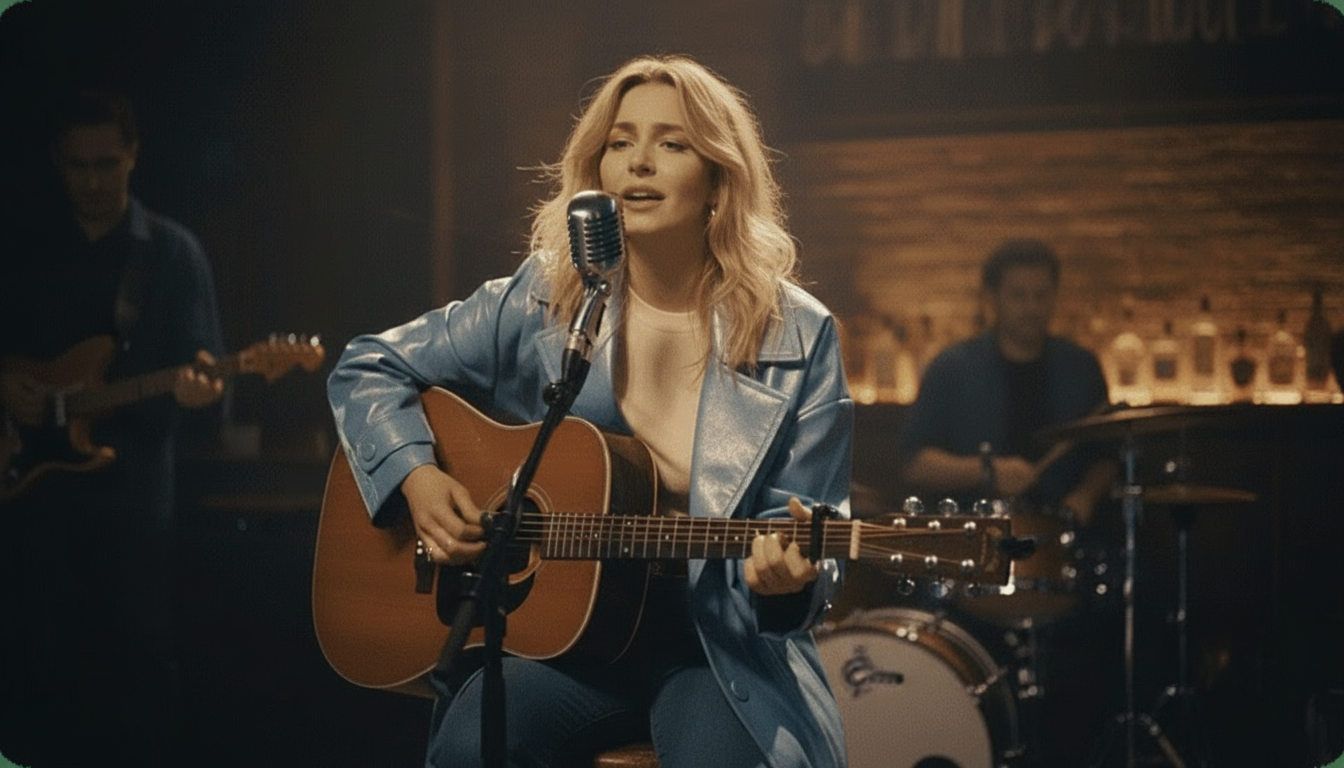
Before generating the video, you have the option to place your subject in a virtual setting. Karaokemaker.ai offers six Instant Stage Presets, like 'Studio' or 'Jazz Club,' which add a professional background and atmosphere. You can also use the Custom Scene Editing tools to further refine the look, giving your final video more context and visual flair than a simple animation.Step 4
Step 4: Generate and Preview the Animation
With your photo and audio ready, click the 'Generate' button. The AI will now process your files and create the talking photo animation. This usually takes less than a minute. Once it's done, a preview of the video will appear on your screen. Watch it to ensure the lip-syncing is accurate and the overall effect is what you envisioned.Step 5
Step 5: Download and Share Your Video
If you're happy with the preview, your talking photo is ready. Click the 'Download' button to save the video file to your computer or mobile device. Since karaokemaker.ai is completely free, the video has no watermarks or resolution limits. You are now free to share your creation on social media, in presentations, or directly with friends and family.
Tips for Creating a More Realistic Talking Photo
Start with High-Quality Inputs
The quality of your final video is directly tied to the quality of your source files. A sharp, high-resolution photo and a crisp, clear audio recording will always produce a more believable and professional-looking animation. Avoid blurry images or muffled audio.
Match the Photo's Mood to the Audio's Tone
For a more coherent result, try to align the emotional tone of the photo with the audio. A serious speech paired with a smiling photo can create a disconnect. While this can be used for comedic effect, a more natural result comes from matching a neutral expression to neutral audio.
Use Simple, Uncluttered Photos
A photo with a simple or blurred background helps the viewer focus on the animated face. Complex backgrounds can be distracting. If your original photo is busy, consider using the Custom Scene Editing feature to place your subject against a simpler virtual backdrop.
Keep Your Audio Clips Brief
While you can animate longer speeches, shorter audio clips (under 60 seconds) tend to work best for viewer engagement, especially on social media platforms like TikTok and Instagram Reels. They also process faster, allowing you to iterate on your ideas more quickly.
Talking Photo Tools: karaokemaker.ai vs Alternatives
| Tool | Free Plan Limitations | Key Feature | Best For |
|---|---|---|---|
| karaokemaker.ai | Completely free, no watermarks or limits. | AI lip-sync with custom scene presets. | Quick, free videos for social media and personal projects. |
| HeyGen | Free plan includes a watermark and short video lengths. | Professional avatars and video templates. | Corporate training and marketing videos. |
| musci.io | Free plan is capped at 480p video resolution. | Primarily focused on making photos sing to music. | Music-based photo animations. |
| aisongmaker.io | Free audio processing is trimmed to just one second. | Specializes in audio-to-animation workflows. | Quick tests of animation concepts with short audio snippets. |
Creative Ways to Use Your Talking Photo
- Personalized Greetings. Send unique birthday wishes, holiday cards, or anniversary messages. Animating a photo of a loved one (with their permission) or even a beloved pet adds a memorable and personal touch that a simple text message can't match.
- Engaging Social Media Content. Create eye-catching posts for Instagram, TikTok, or Facebook. You could animate a historical figure 'reciting' one of their famous quotes, or make a meme image deliver a punchline to capture your audience's attention.
- Educational Materials. Bring history to life for a school project by animating a portrait of a historical figure to narrate their own story. In a professional context, you could animate an avatar of an expert to explain a complex topic in a more engaging way.
- Unique Marketing Messages. Animate a company mascot, a founder's portrait, or even a suitable stock photo to deliver a quick marketing announcement or a product feature highlight. It's a novel way to stand out in a crowded social media feed.
Common Questions About Making Photos Talk
How can I make a talking photo for free online?
What kind of photos work best for AI animation?
Can I use any audio to make a photo talk?
How long does it take to turn a picture into a talking video?
Is it possible to animate old family photos?
What is the best way to make a talking photo with AI?
Are there any legal or ethical rules I should know about?
Ready to Animate Your Photos?
Bring your images to life. Use karaokemaker.ai's free tool to create your own talking photo in minutes. No sign-up, no watermarks, just creative fun.
Try the Talking Photo MakerRelated guides
Related Guide
How to Make Any Photo Sing
Learn how to animate a photo to sing along to your favorite song, a different but related use of AI photo animation.
Related Guide
How to Lip-Sync a Photo
Explore the nuances of creating perfect lip-sync videos from a single image, focusing on timing and expression.
Related Guide
The Best AI Talking Photo Generators
Compare the top tools available for creating talking photos, and see how they stack up on features, quality, and price.
Sources
- karaokemaker.ai — Free AI Talking Photo Generator - The tool featured in this guide.