AI Animation Guide
How to Make Any Photo Sing: A Step-by-Step AI Tutorial

Bringing Still Images to Life with AI
What You'll Need Before You Start
- A suitable photograph. Choose a clear, front-facing photo where the subject's face is well-lit and not obscured by objects like sunglasses or hands. Crucially, you must use a photo that you own or have explicit permission and rights to use for this purpose.
- An audio file. This can be any song or even a spoken-word recording. For the best lip-sync results, an audio file with clear, prominent vocals is ideal. Most common formats like MP3, WAV, and M4A are supported.
- A device with a web browser. Since karaokemaker.ai is an online tool, you don't need to install any software. Any modern desktop or mobile browser will work, allowing you to create your singing photo from anywhere.
How to Turn a Photo into a Singing Video
Step 1
Step 1: Upload Your Photo
Navigate to the AI Singing Photo tool on karaokemaker.ai. The first step is to upload your chosen image. Click the upload button and select the photo from your device. For the best results, use a high-resolution image where the face is clearly visible and looking towards the camera. Remember, you must have the rights to use the photo you are animating. A photo you've taken yourself is always the safest option.Step 2
Step 2: Provide Your Audio
Next, upload your audio file. This is the song or voice recording you want the photo to sing along to. The AI will analyze the vocals in this track to generate the corresponding lip movements. If the song has a long instrumental intro, consider trimming it so the vocals start sooner. This ensures the animation begins right away.Step 3
Step 3: Choose Your Animation Mode
Our tool offers several modes tailored to different types of photos. Select 'Solo' for a standard portrait of one person. If your photo features two people you want to animate, choose 'Duet'. We even have a 'Pet' mode specifically trained to animate the faces of cats and dogs, so you can make your furry friends sing, too.Step 4
Step 4: Select a Stage Preset
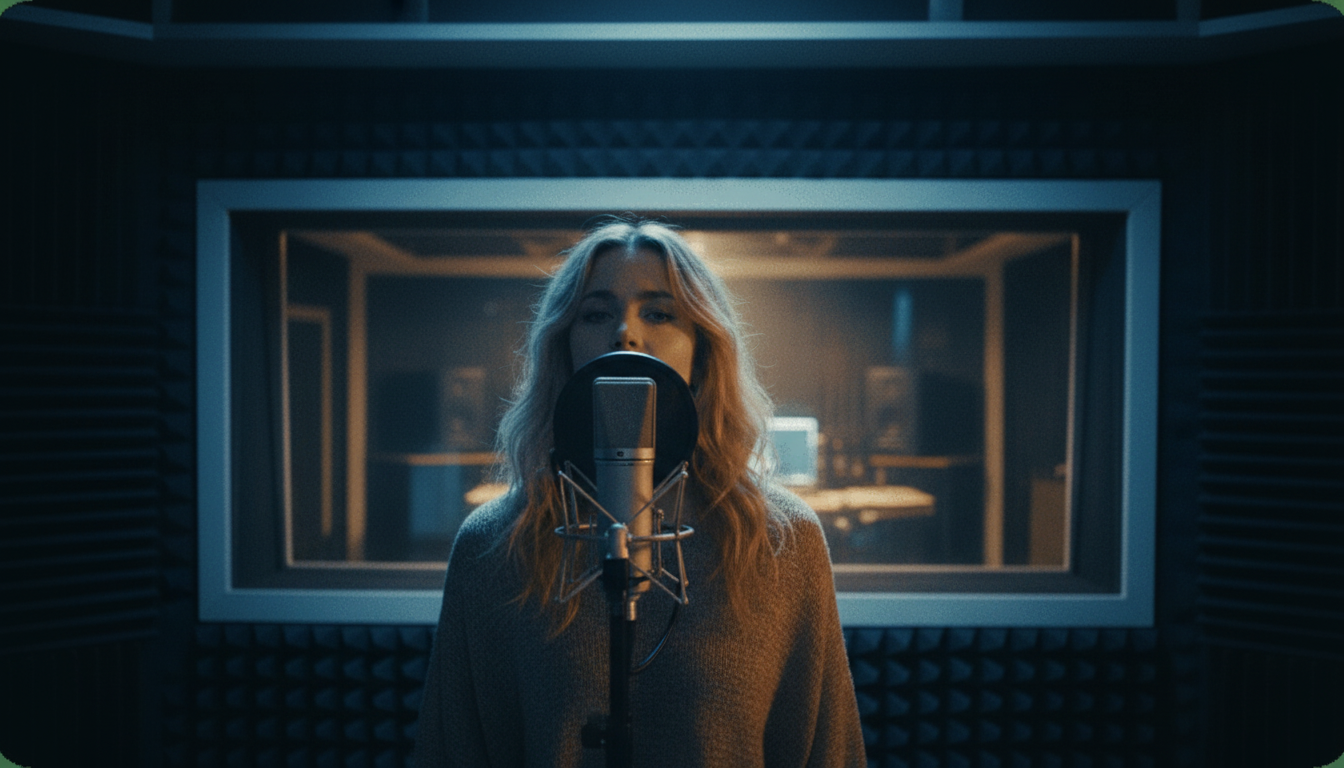
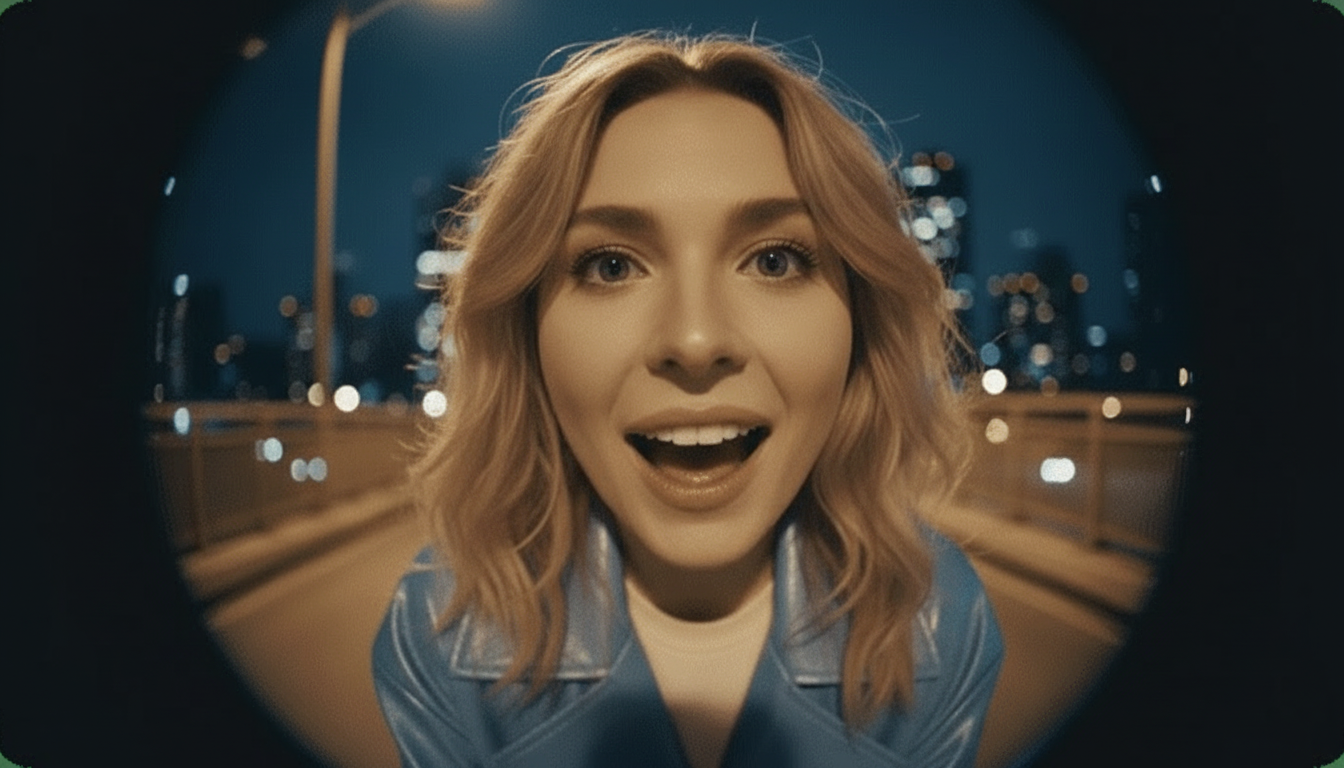
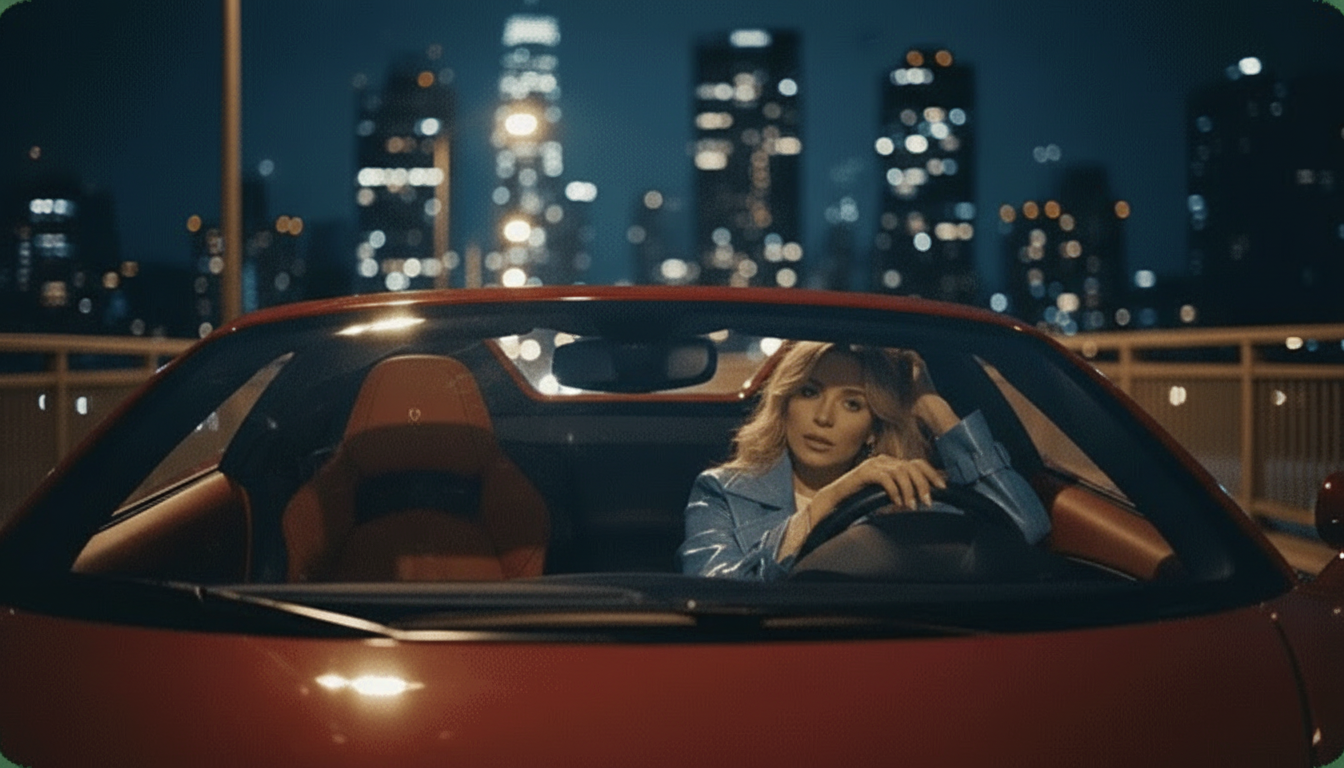
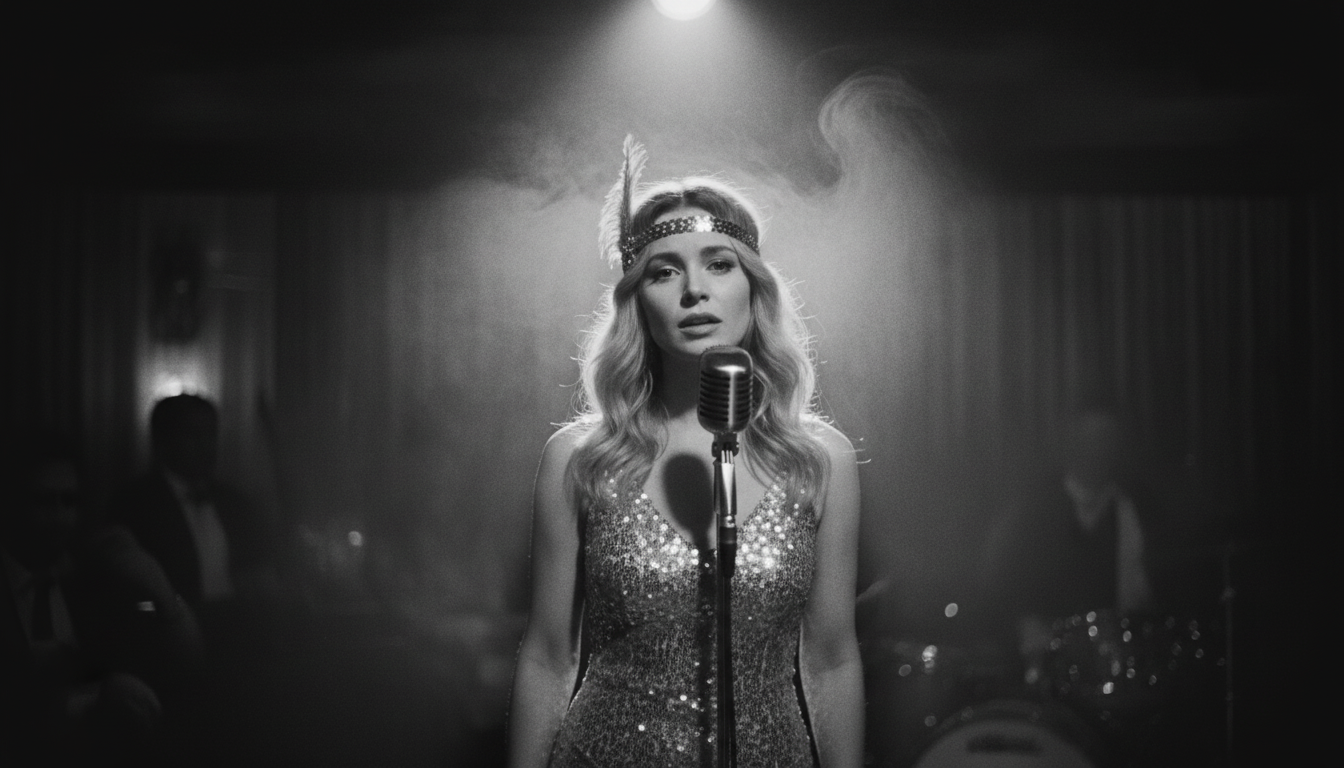
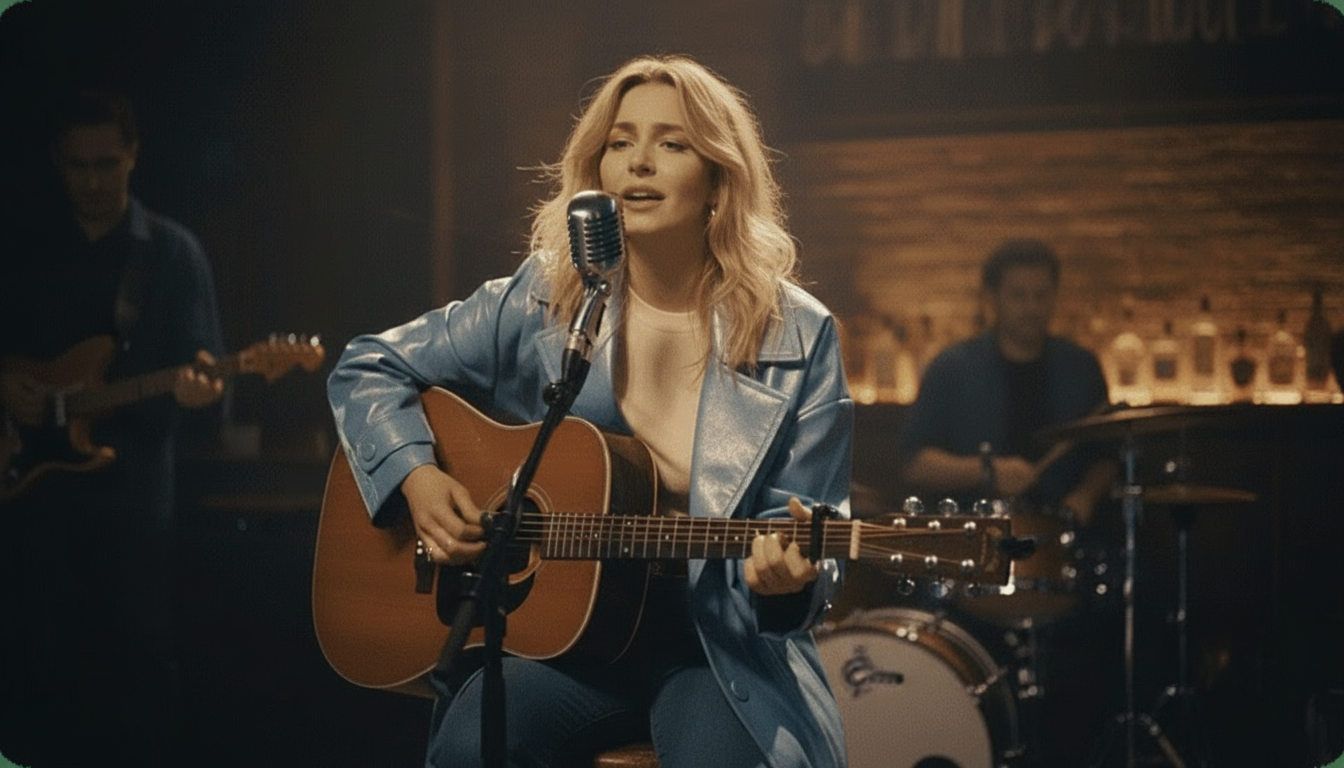
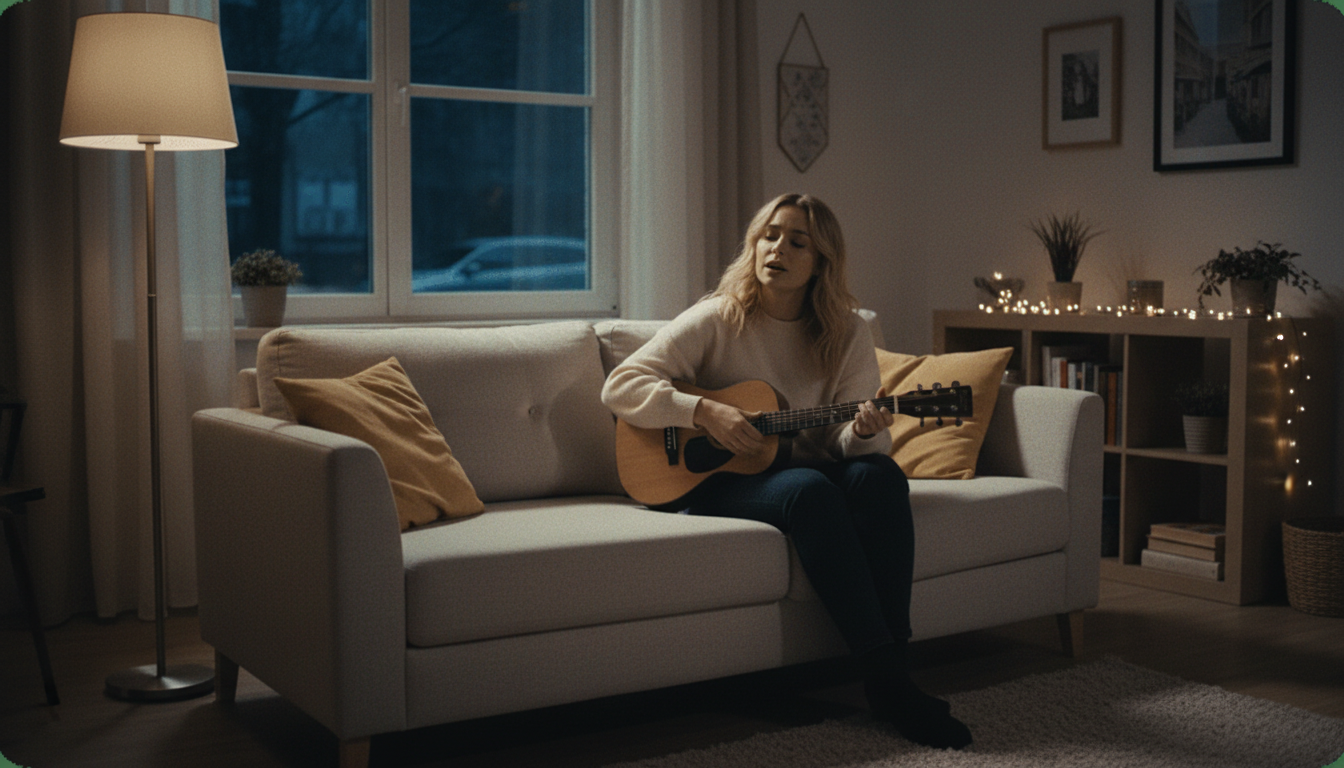
To instantly give your video a professional look, you can choose from six Instant Stage Presets. These are pre-designed backgrounds and lighting environments, including a Studio, Jazz Club, Home, Bar, Supercar, and a dynamic Fisheye lens effect. Click through them to see a preview and find one that matches the mood of your song.Step 5
Step 5: Generate and Preview Your Video
Once you've configured your options, click the 'Generate' button. The AI will now process your photo and audio, which may take a few moments depending on the length of your audio file. A preview of your animated singing photo will appear once it's ready. Watch it to make sure you're happy with the lip-sync and overall effect.Step 6
Step 6: Download and Share
If you're satisfied with the preview, you can download the final video. With karaokemaker.ai, the downloaded video is completely free and 100% watermark-free, making it ready to share directly on your social media channels, in messaging apps, or anywhere else you'd like. There are no hidden fees or subscriptions required.
Getting the Best Results
Use High-Quality Source Files
The AI's performance is directly tied to the quality of your inputs. A sharp, well-lit photo and a clear audio file with distinct vocals will always produce a more realistic and convincing animation than blurry images or muffled audio.
Choose Front-Facing Portraits
For the most natural-looking animation, use a photo where the subject is facing forward with their mouth closed in a neutral expression. Photos taken from extreme angles or with wide smiles can be harder for the AI to animate accurately.
Experiment with Presets and Custom Scenes
Don't just stick with the first option. The Stage Presets can dramatically change the vibe of your video. For even more control, explore the Custom Scene Editing feature to upload your own unique background image and create a truly personalized video.
Consider the Song Choice
Songs with a clear, steady vocal line tend to work best for lip-syncing. While the AI is powerful, extremely fast rap verses or heavily processed vocals can be challenging to sync perfectly. Experiment to see what works best for your chosen image.
Go Beyond Singing Photos
Once you've created a singing photo, explore this site's other tools. Use the AI Stem Splitter to isolate vocals or create a karaoke track from any song, or use the Lyrics Video Maker to create a full, professional-looking music video for your project.
Common Questions About AI Singing Photos
How can I make a photo sing for free online?
What is the best way to make a photo sing with AI?
Can I use a picture of a celebrity or cartoon character?
Does the final singing video have a watermark?
Can I make a photo of my pet sing a song?
How long does it take to animate a photo?
What's the difference between a singing photo and a talking photo?
Ready to Animate Your Photos?
Now that you know how it's done, it's time to bring your own pictures to life. Try our AI Singing Photo generator now and create your first animated video in minutes, completely free and without any watermarks.
Create Your Singing PhotoRelated guides
Related Guide
How to Lip Sync a Photo with AI
Learn the specifics of creating a perfect lip-sync video from a static image, focusing on spoken word or music.
Best Tools
The Best AI Singing Photo Generators
Explore and compare the top AI tools available for creating animated singing photos, and see why a free, unlimited option stands out.
Related Guide
How to Make a Talking Photo Online
Go beyond singing and discover how to make any photo speak your words with our guide to AI talking photos.
Creative Idea
How to Create an AI Singing Animal Video
A fun tutorial focused on using the 'Pet' mode to bring photos of your favorite animals to life with song.
Sources
- karaokemaker.ai — AI Singing Photo Generator - The primary tool featured in this guide.