Step-by-Step Guide
How to Make a Lip Sync Photo with AI for Free

What Is a Lip Sync Photo and How Does It Work?
What You'll Need to Get Started
- A Clear Photo. Choose a high-resolution, front-facing portrait where the subject's face is well-lit and not obscured by hands, hair, or shadows. The AI works best when it can clearly see the entire face, especially the mouth and jawline. Crucially, you must either own the rights to the photo or have explicit permission from the person in it to use their likeness for this purpose.
- An Audio File. This can be any song, a voice recording, or a sound clip from a movie or meme. For the best results, use a clean audio file without excessive background noise, as this helps the AI accurately map the sounds to facial movements. Most common audio formats like MP3 or WAV are supported.
How to Lip Sync a Photo Using karaokemaker.ai
Step 1
Step 1: Upload Your Photo
Navigate to the lip sync tool on karaokemaker.ai and begin by uploading your chosen image. Select a photo from your device where the subject is facing forward. A clear view of the mouth is essential for the AI to generate accurate animations. Remember the golden rule: only use photos you have the right to animate. This means using your own pictures or those you have explicit consent to use.Step 2
Step 2: Add Your Song or Audio Track
Next, upload the audio file you want the photo to sync with. This could be a full song, a 15-second clip for a social media post, or a spoken-word recording. The tool will analyze the audio to understand its rhythm, cadence, and phonetic structure, which is the foundation for creating the lip movements.Step 3
Step 3: Let the AI Generate the Animation
Once your photo and audio are uploaded, the AI gets to work. It maps the phonemes from your audio track to the corresponding mouth shapes (visemes) and animates the mouth in your photo frame by frame. This process also includes subtle head movements and eye blinks to make the animation feel more natural and less robotic. This step is fully automated and typically takes just a minute or two.Step 4
Step 4: Customize the Scene (Optional)
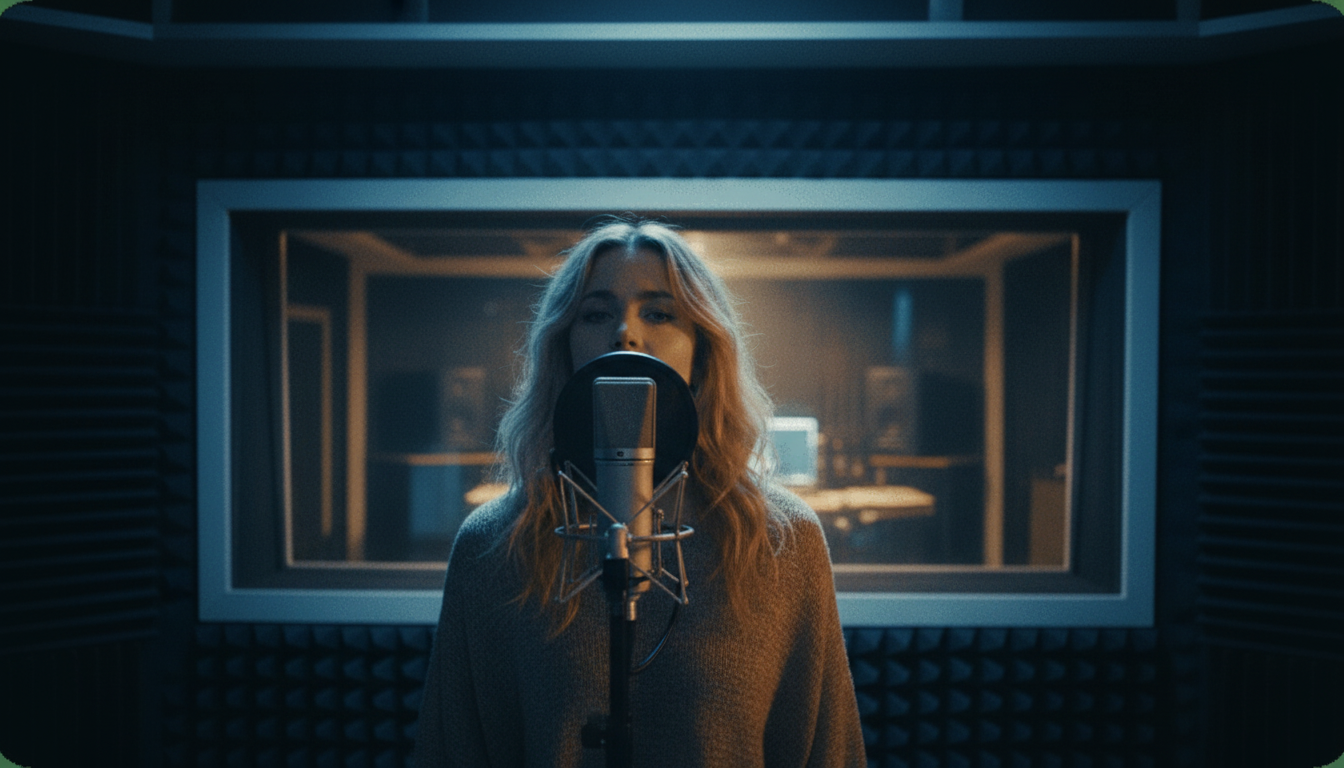
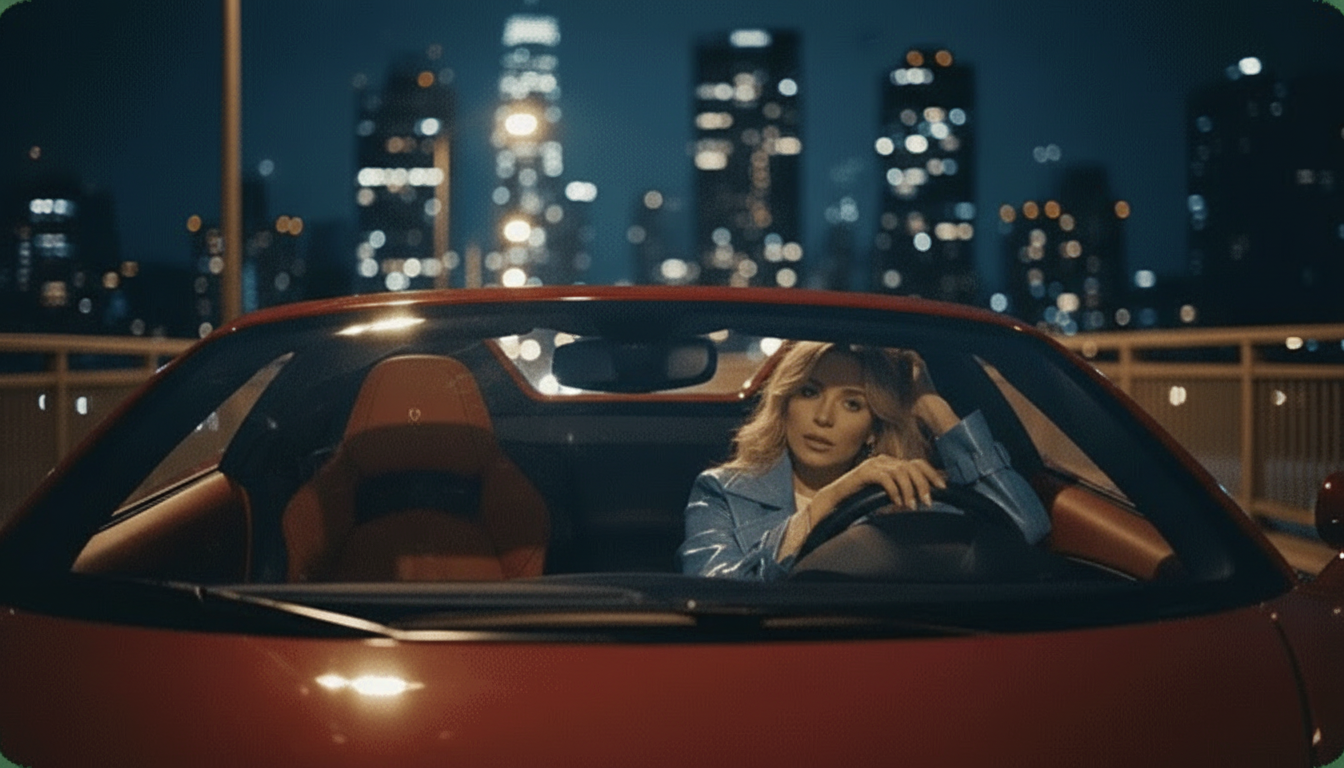
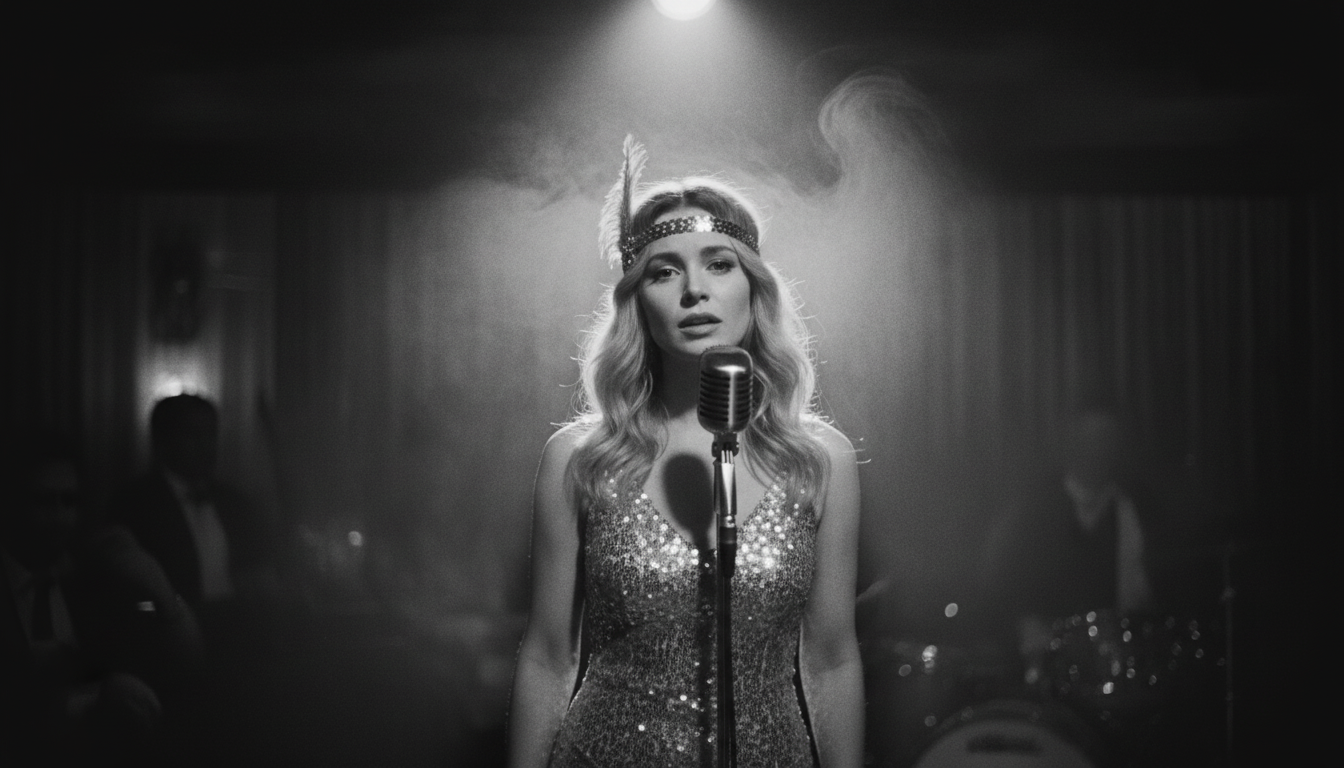
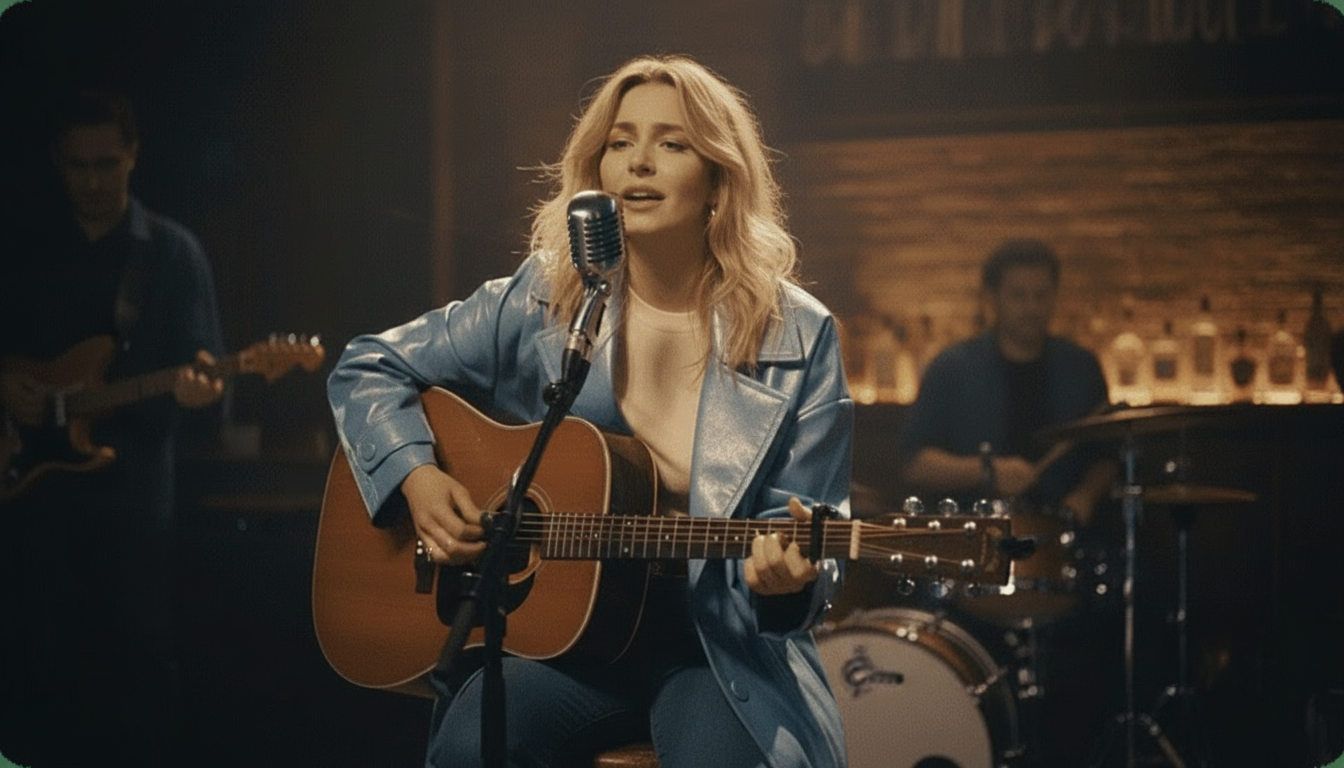
To make your video more visually engaging, you can place your animated photo into a virtual environment. karaokemaker.ai offers several Instant Stage Presets, such as a Jazz Club, a Studio, or a Supercar. These backdrops add context and production value to your video. You can also use the Custom Scene Editing tools to further refine the look and feel.Step 5
Step 5: Preview and Download Your Video
After the generation is complete, you'll see a preview of your lip sync video. Watch it to make sure you're happy with the synchronization and overall effect. If everything looks good, you can download the final video as an MP4 file. With karaokemaker.ai, the entire process is free, and the final video has no watermarks, making it ready to share anywhere.
Getting the Most Realistic Results
Choose High-Quality Inputs
The AI's output is only as good as its input. A blurry photo or muffled audio will result in a less convincing animation. For the best way to lip sync a photo with AI, always start with the sharpest image and cleanest audio file you have.
Match the Mood and Energy
Consider the expression in the photo. An image of someone smiling will look more natural when synced to an upbeat, happy song. A serious expression is better suited for dramatic monologues or ballads. Aligning the emotional tone of the photo and audio creates a more believable final product.
Keep it Short for Social Media
While you can animate longer clips, the most effective lip sync videos for platforms like TikTok, Instagram Reels, and YouTube Shorts are short and punchy. Focus on a memorable chorus or a funny one-liner to grab attention quickly and maximize engagement.
Experiment with Different Photos
Not every photo animates equally well. If your first attempt doesn't look right, try a different picture. A slight change in angle, lighting, or expression can make a significant difference in the quality of the final animation. Don't be afraid to experiment to find the perfect combination.
Choosing a Free Lip Sync Photo Tool
| Tool | Free Plan Limitations | Best For |
|---|---|---|
| karaokemaker.ai | 100% free with no watermarks or credit limits. | Users who want unlimited creations without paywalls for social media content and personal projects. |
| HeyGen | Free plan includes watermarks and limits video length to short clips. | Quick tests and users who don't mind a watermark on their final video. |
| musci.io | Free version exports in lower resolution (480p). | Users who prioritize longer video lengths in the paid tiers but are okay with standard definition on the free plan. |
| aisongmaker.io | Free audio previews are trimmed to just one second. | Users who want to quickly test the audio sync on a very short sample before committing to a paid plan. |
Creative Ways to Use Lip Sync Photos
- Animate Historical Figures. Bring a portrait of a famous historical figure to life by having them recite one of their famous quotes or, for a comedic twist, sing a modern pop song. This is a great way to make history content more engaging.
- Make Your Pets 'Talk' or 'Sing'. Have you ever wondered what your dog or cat would say? Upload a clear photo of your pet and sync it with a funny audio clip or song to create hilarious videos that are perfect for sharing online.
- Create Personalized Greetings. Animate a photo of a friend or family member to sing 'Happy Birthday' or deliver a special message. It's a unique and memorable alternative to a standard greeting card.
- Bring Old Family Photos to Life. Use the technology to animate old photographs of ancestors. Hearing them 'speak' or 'sing' can be a powerful and moving way to connect with your family history.
- Produce Viral Memes and Content. Turn any static image from pop culture into a trending meme. Syncing a photo with a popular sound clip is a fast and effective way to jump on trends and create shareable content.
Common Questions About Lip Syncing Photos
Can I really lip sync a photo to any song for free?
What is the best type of photo for lip sync animation?
Do I need to install special software to make a photo lip sync?
How does the AI technology actually animate the mouth?
Is it legal to use any photo for a lip sync video?
Can I use a photo of a cartoon character or a painting?
What other creative tools does karaokemaker.ai offer?
Ready to Bring Your Photos to Life?
Stop imagining and start creating. Use karaokemaker.ai's free tool to make your first lip sync photo in minutes. No downloads, no watermarks, just creative fun.
Try the Lip Sync Tool for FreeRelated guides
Related Guide
How to Make Any Photo Sing: A Beginner's Tutorial
Go deeper into the process of turning a static portrait into a singing performance with our detailed guide.
Related Guide
How to Make a Talking Photo with an AI Voice
Learn the steps to animate a photo not just with a song, but with any spoken-word audio track or voiceover.
Related Guide
The Best AI Lip Sync Tools Compared
See how different online tools stack up for creating animated photo videos, and find the best one for your needs.
Sources
- karaokemaker.ai — Free AI Lip Sync Photo Generator - The primary tool featured in this guide.